On 30 October we set out our plans and our promises for AI in CaseSuma. The first AI features are now in every plan. They are optional: nothing changes for your firm until your Administrator switches them on. This is what they do.
It reads your documents and fills in the case
Upload a CMR, an invoice or a survey report to a case, scans and photos too. AI reads each new document and suggests what kind of document it is and the case details it found: the parties, the dates, the amounts, the transport document number, the place of loss, the goods, the cargo weight and the cause of loss. You accept, edit or ignore each one. “Accept and open Edit Case” puts them into Edit Case, each marked “AI suggestion”, and nothing is saved until you click Save.
A new case from an e-mail
A client or a colleague e-mails you a new claim with the documents attached. In the Email inbox, choose the e-mail and click “Create case with AI”: AI reads the e-mail and its files and opens the New Case form with the details it found, each marked “AI suggestion”. You choose who your client is, check the fields and click Save. Only then is the case made, with the e-mail and its files filed on it. If you leave the form without saving, nothing happens and the e-mail still waits in the inbox.
The whole claim on one page
On the AI Summary tab of a case, one click and AI reads the documents of the case and writes who the parties are, what happened, the surveys, the amounts, the limitation date and the documents that seem to be missing. Every point names the document it comes from, as a link, so you can check it in seconds. Choose Short or Full, and print it as PDF or save it as Word. The summary is kept with the case, like a note; it never changes the case details by itself.
The next steps, following your own Playbook
Under the summary, Next steps suggests two to four steps for the case, the most urgent first, each with its reason: an article of the convention or a rule of your firm. Your Administrator writes the firm’s rules once, in Settings, in the Next steps playbook, and AI follows them first. The steps are written for the side you act for. A step that is a task has “Add task”, with the due date filled in.
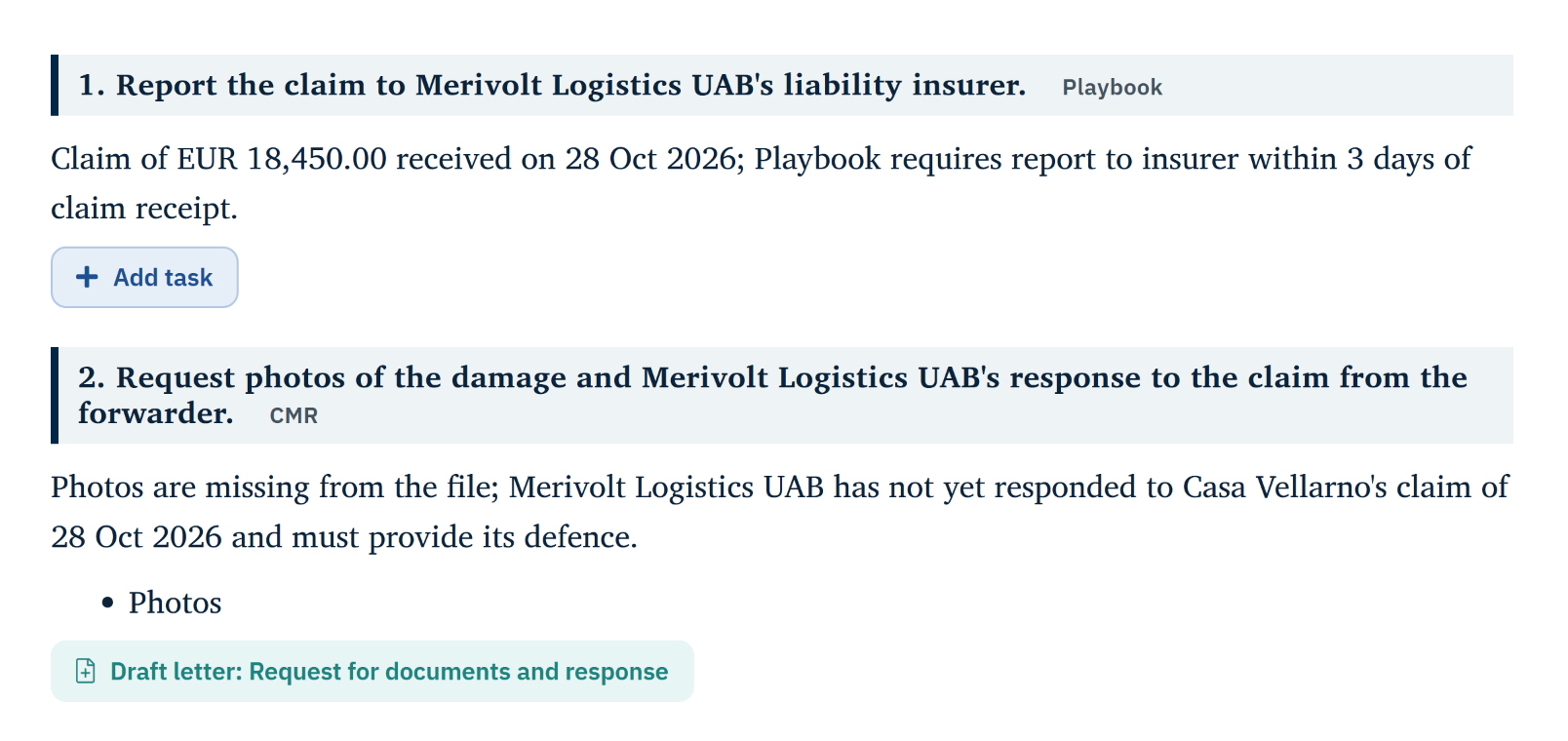
Next steps for a case, each marked “AI suggestion: check before you act”.
Draft letters in your name
A step that needs a letter has “Draft letter”. AI drafts it, and it opens in the letter window of the case, signed by you with your job title, on your firm’s letterhead and footer when you choose them. You read it, change what you want, and save it as PDF or Word. CaseSuma sends nothing: you send the letter yourself.
What is included
- AI pages every month: 1,000 per user on Solo, 2,000 per user on Teams. The pages AI reads are counted from them; a set of next steps or a draft letter uses 1 AI page.
- The free trial has 500 AI pages for the whole trial.
- Extra AI pages from €10.00, kept until they are used, paid by card or by invoice.
- Nothing runs up by surprise: before reading more than 20 pages, CaseSuma asks you first. When the pages are used up, AI pauses and the rest of CaseSuma works as always.
Our promises, kept
- Optional, and off until your Administrator switches it on for the whole firm, in Settings. It can be switched off again at any time.
- Suggestions only. Every suggestion is marked “AI suggestion”, and nothing is saved or sent until you have checked it.
- Your documents are processed in the European Union by Amazon Web Services, and they are not used to train AI.
- For each use, CaseSuma keeps only who used AI, when, for which document and how much, never what the document says.
- AI can make mistakes, and its suggestions are not legal advice. You check, and you decide.
How to switch it on
If you are your firm’s Administrator, open Settings, go to the card “AI suggestions”, tick “Use AI suggestions in our firm” and save. Then write your firm’s rules in the card “Next steps playbook”, one rule per line. The Guide in CaseSuma (Support) explains each step.
Is there another part of your claims work where AI could save you time? Tell us on our contact page.